The Information System Student Start of term Select seminar groups
Clicking on the course name or checking multiple boxes for course
names and pressing "Show further information on the selected courses";
will open the seminar group enrolment menu.
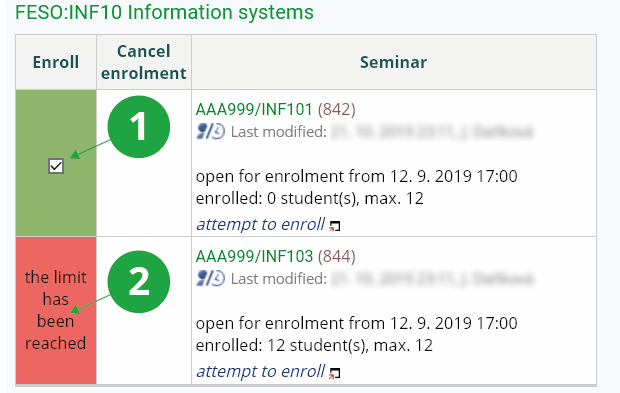
1 Check to select a seminar group.
2 The seminar groups marked red cannot be registered for.
- Green – Enrolment possible. The word "clashes" indicates a clash in your current timetable.
- Blue – The seminar group you have enrolled in before. If the group does not suit you anymore while the others have no more room left, you might still want to offer your place in your current one for exchange at Seminar Group Exchange.
- Crimson – No enrolment possible. For details on what prevents you from enrolling in the group, please go to the Registration application – here.
- Red – You could enrol in this group if you were not currently enrolled in another. Clicking on "enrol here", you will move from your current group (the blue one) to this one.
TipTimetable clashes are not detected when the system load is increased.
Selecting a seminar group can be made easier by displaying the
selected group in the timetable using the "Display timetable" link (if
a timetable is specified for the group).
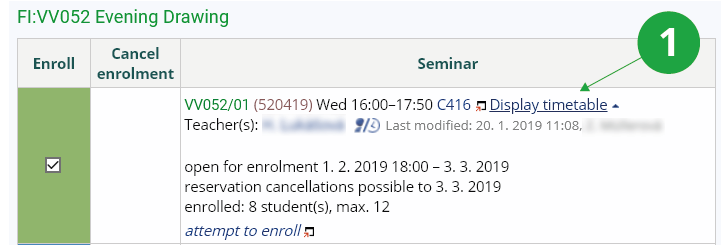
1 Display timetable of the seminar group.
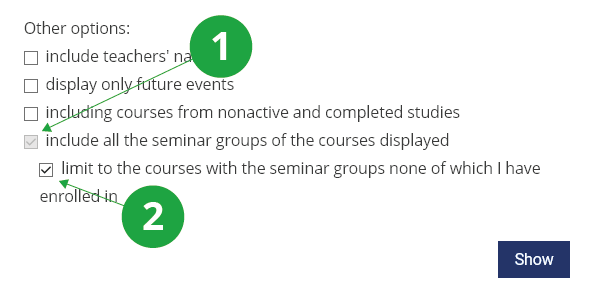
1 The option adds all seminar groups of the course to the timetable.
2 The option displays all seminars of the course where you are not enrolled in any group.