The agenda can be used for testing in the computer classroom. Students fill in a form in the IS, which itself corrects the exam. If the test includes free-form answers (which the system cannot correct automatically), the teacher will correct them manually later. The test is not accessible before the start of the exam.
You can limit the time for taking the test, ither by the total number of minutes or by setting the day and hour from-to which the ROPOT can be worked with, or a combination of both (see above).
If you limit the time for working with the ROPOT, the answers will be automatically submitted after the time limit expires. Therefore, the answers of students who did not save the test using the "Submit" button are not lost.- Organization of ROPOTs for multiple examination dates
- Make these decisions:
Do I want to use one assignment for multiple examination dates?
Do I want the student to not be able to view the assignment questions in any way after submitting the test?
Depending on the level of "uniqueness" you require, you need to create as many ROPOTs as you need. The usual procedures are:- Each examination date has a unique assignment stored in a separate question set, the test questions are mixed (each student sees them in a different order)
- For example, there are three different question sets, each set to be used on multiple examination dates.
- There is only one assignment = question set.
Access to a single ROPOT can be "given and taken" over time. It can be made accesible on Mondays 8.00-9.00, then 14.00-15.00, etc., as the examination dates are organized. A student who has already taken the test cannot change the answers, but can look at the wording of the questions should he/she reopen the ROPOT when the next examination date is in progress. This can be avoided if you restrict access to the ROPOT to a specific part of the computer network (the classroom – LVT department will help), so that it is not freely accessible from the internet. If you cannot use this restriction and do not want students to be able to return to the assignment, create a separate ROPOT description for each examination date. - Security mechanisms
- Find out from the technical support of the computer room the range of addresses of the computer network of the classroom (the so-called IP addresses) and enter them in the description of the ROPOT– the section "On which computers should the students be allowed to work with the ROPOT application?". The student can also give you the address of the computer individually, it can be found under
Information system System Remote client IP addressIf you don't want or can't find out the IP addresses, you can do the following:
- Use the regular examination dates application to divide students into examination dates, set up "log in" and "log out" dates well before the exam date so that someone can't log in at the last minute and open the test (view the test questions).
- In the description of the ROPOT, under "Rights and time group", specify that only those with a reservation on a specific examination date can open it.
- At the beginning of the exam, check attendance and remove those students who are absent from the examination date reservation (so that they do not open the ROPOT from the internet during the exam).
- You can specify in the ROPOT description that a wide coloured column should appear on the left side of the screen when the ROPOT is launched.
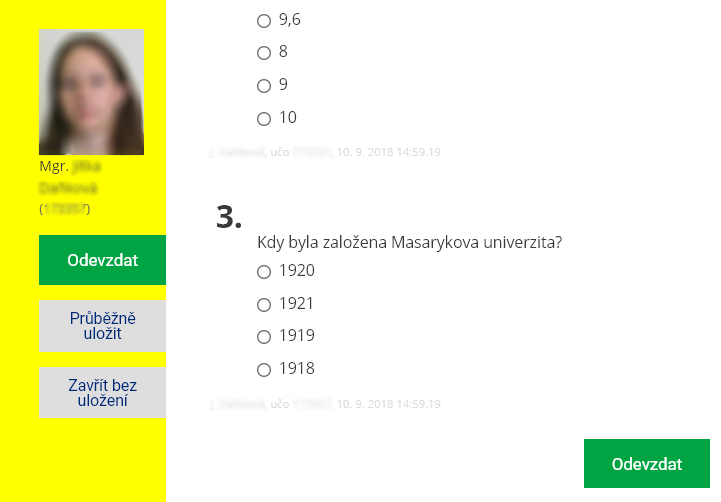
1 A coloured column in the ROPOT as part of the security measures.
- If you have set up the display of the left column (see the previous paragraph), the identity of the respondent, i.e. the name, učo and photo of the person logged in, will also be displayed. This will make it easier to check the identity of the respondent.
- You can contact the faculty CIT to ask if it would be possible to disable access to other sites than is.ambis.cz.
- What else is good to know...
- The student cannot unknowingly open the ROPOT twice (e.g. by double-clicking). If such a situation occurs, MU IS will ask the student whether he/she really wants to open the ROPOT a second time. The same question will be asked if the student wants to open the unsaved test in two browser windows or panels. Whether he/she will be able to do this depends on the setting of the parameters in the ROPOT description,
but the ROPOT cannot be reopened and the answers cannot be continued/changed if the setting is "no (once you open the ROPOT, you cannot reopen the ROPOT sometime later and change the answers)"..
Students have a "Save and continue" button to prevent inconveniences caused by power outages, etc. If you set in the ROPOT description for the test to have multiple pages, “save and continue” is done automatically when a respondent moves between pages. It also occurs when a respondent presses the "Enter" key. However, only the final submission, is the decisive moment for
the evaluation of the test and the allocation of points..
The system records all operations that have been performed (time of launching the ROPOT, computer address, answers chosen, time of submission, viewing the answers, etc.). In the event of problems or suspected malpractice, these data can be found.
If a student accidentally submits a session for evaluation, they typically cannot return to the test. A possible solution is to remove his/hers answers with the application
Information system Teacher [course selection] Work with ROPOT Remove answersand let him/her launch the ROPOT all over again.