The Answers application records all the passes and operations during the answering process of all the persons recorded for a particular ROPOT, and displays the students' answers in the course in priority. The application can be launched via:
For the course teacher, the application allows to filter these ROPOT sessions using the options given at the top of the page, to delete sessions, to renew sessions, to force the submission of a pending sessions and last but not least to view the student's answers after submission or at different stages of filling in the ROPOT.
In addition, the application allows you to manually rate the student's answers with points or verbal comments. Answers can also be exported or checked for plagiarism (see Help Are the answers in the ROPOTs also checked?).
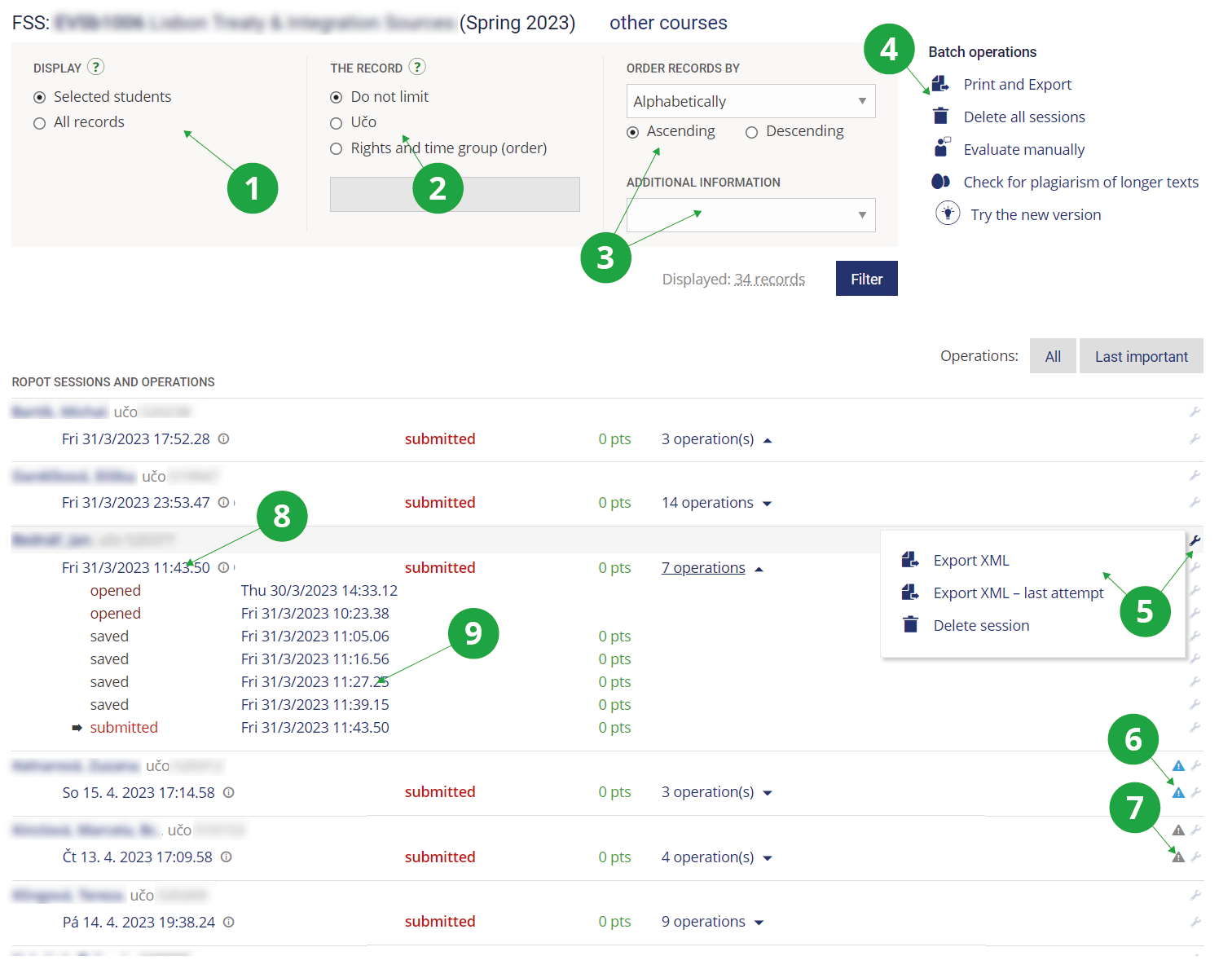
1 The instructor can choose to see only records of a limited group of students (e.g. his/her seminar group, etc.), or all records registered for the selected answer sheet will be displayed.
2 Limit the list by type of records (e.g. all records, matching specified by the teacher, unassigned assignments, application numbers, etc.).
3 Order the records and display additional information (e.g. about the manual assessment entered).
4 Setting of batch operations (only those operations that can be performed on the ROPOT are always displayed).
5 Under the assembly key icon, a menu of options for the pass will be displayed on that row (options vary for the whole record, the whole pass, just a specific operation).
6 Attention to a work in progress pass and the option to end it, for all responders or individually.
7 Warning of a mismatch in the number of operations performed, a passage reopened or a passage not yet answered.
8 Date and time of the last listed operation, typically a submission, also a link to view responses/enter manual evaluation if set.
9 List of matching operations in the sessionas; clicking on the date and time of the operation will display a tour of responses at the time of that operation.
The display of options in the Answers app varies slightly based on, among other things, the mode of the answerer, its settings, or whether the answerer is allowed to have more than one pass. For individual records, sessions or operations, only those options that are relevant at the time, i.e. can be performed, are offered.
- ROPOT administrator
- This is the person who sets up the ROPOT and performs other operations on it. Typically, this is the course teacher or a person authorized by the course teacher with access to the Teacher's Notebook. Anyone can be the administrator of a non-course ROPOT.
- The Record
- By a record is meant a user who responds a ROPOT (a respondent, typically student) or a compiled test sheet not linked any to student yet.
- Session
- The user creates the session by clicking on the "Launch a new ROPOT application" button, the system creates the assignment and starts the test. For each session, the date, time, and all operations made during a session are recorded.
- Operations
- The operation means opening, saving, submitting, viewing by respondent and changing the marking of right/wrong answers in the evaluation section by teacher. The system records all operations that are performed on the ROPOT session.
- Session in progress
- If a respondent launches the ROPOT, fills in at least one answer and saves it using “Save and continue” button, and does not use the "Submit" button, this session is marked as a session in progress. It is desirable that the sessions do not remain in progress, as only after submission will the test be evaluated (and the result written in the notebook, if required). A turquoise icon with an exclamation mark indicates a session in progress. An in-progress session can be ended either by the respondent submitting the test or by the teacher changing the save to submit in the session (for a tool to end a work-in-progress session, see the handling key icon – i. e. “Edit session” button).
- Mismatch in number of started sessions, session reopened, session still unanswered
- This is supplementary information, especially for cases where a student reports difficulty working with the answer key. They are notifications of a non-standard number or order of some operations. Mismatch in the number of started sessions highlights situations where there has been a mismatch in the number of times the ROPOT has been opened and submitted or vice versa. Re-opened session highlights a situation where the respondent has already submitted their answers at least once in the sessione, but then returned to the test again by clicking on 'Re-answer' and has not yet made any changes to their answers since then. For the passage with no answers so far, the answerer has made a new assignment but has not filled in any answers.
- Opened
- The date and time of launching the ROPOT session by respondent is recorded accordingly. For a compiled test sheet, it indicates the date and time the compiled test sheet was created (typically a compiled test sheet for scannable exam).
- Saved
- It records the date and time when the respondent used the "Save and Continue" button or when the continuous save occurred automatically.
- Submitted
- The date and time when the respondent clicked on the "Submit" button and the ROPOT session was evaluated, or when the session was automatically submitted at the end of the time limit for taking the test, is recorded
- Viewed
- The date and time at which the respondent viewed their answers is recorded. The ability to view responses and possibly see which ones are correct is set by the ROPOT administrator.
- Correction
- Record the date and time when the teacher made a change of the marking of right/wrong answers in the evaluation section of the answers (for at least one question, the teacher changed which answer was correct and the points were recalculated).
- Last important operation
- It is either opened, saved or submitted. It is marked with a black horizontal arrow in the list of operations next to the session.