Checking results of recognition process – evaluation of the answer sheets
Once you have scanned the answer sheets, click on
Information system Teacher [course selection] Work with ROPOT Folder contents recognition
Specify a folder in your Depository containing the scanned files of the answer sheets and click on "Use the folder selected". Once the answer sheets have been recognised, go to the Checking results of recognition process application, select the appropriate ROPOT description and the folder with the recognised files and click "Check".
The application will offer to correct the answer sheets that it either could not recognize or there is some other discrepancy (missing test sheet number, učo, answer is illegible or missing completely, ...).
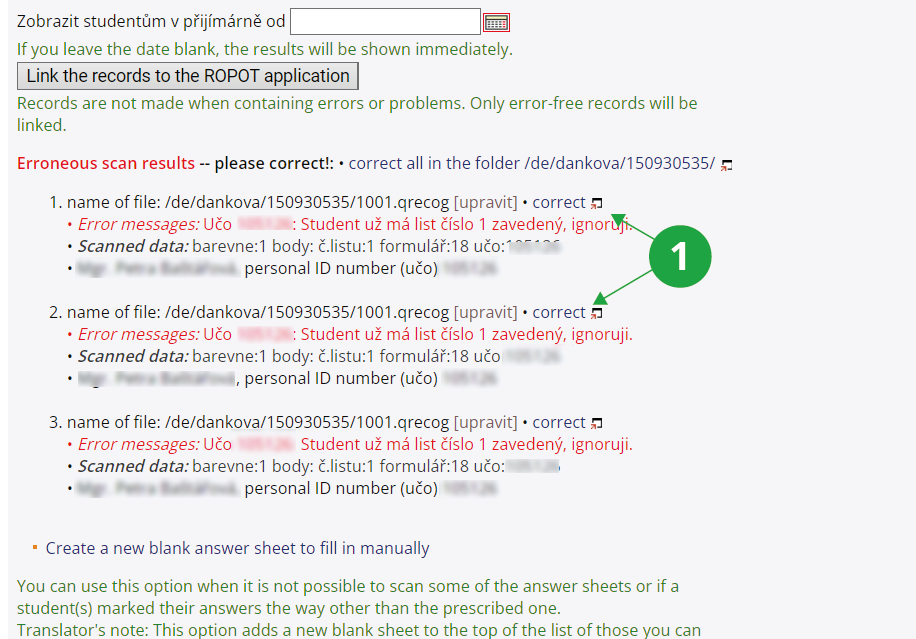
1After clicking on "correct" you can try to fill in the missing data yourself in the prepared fields if the data on the answer sheet is present and just not recognized.
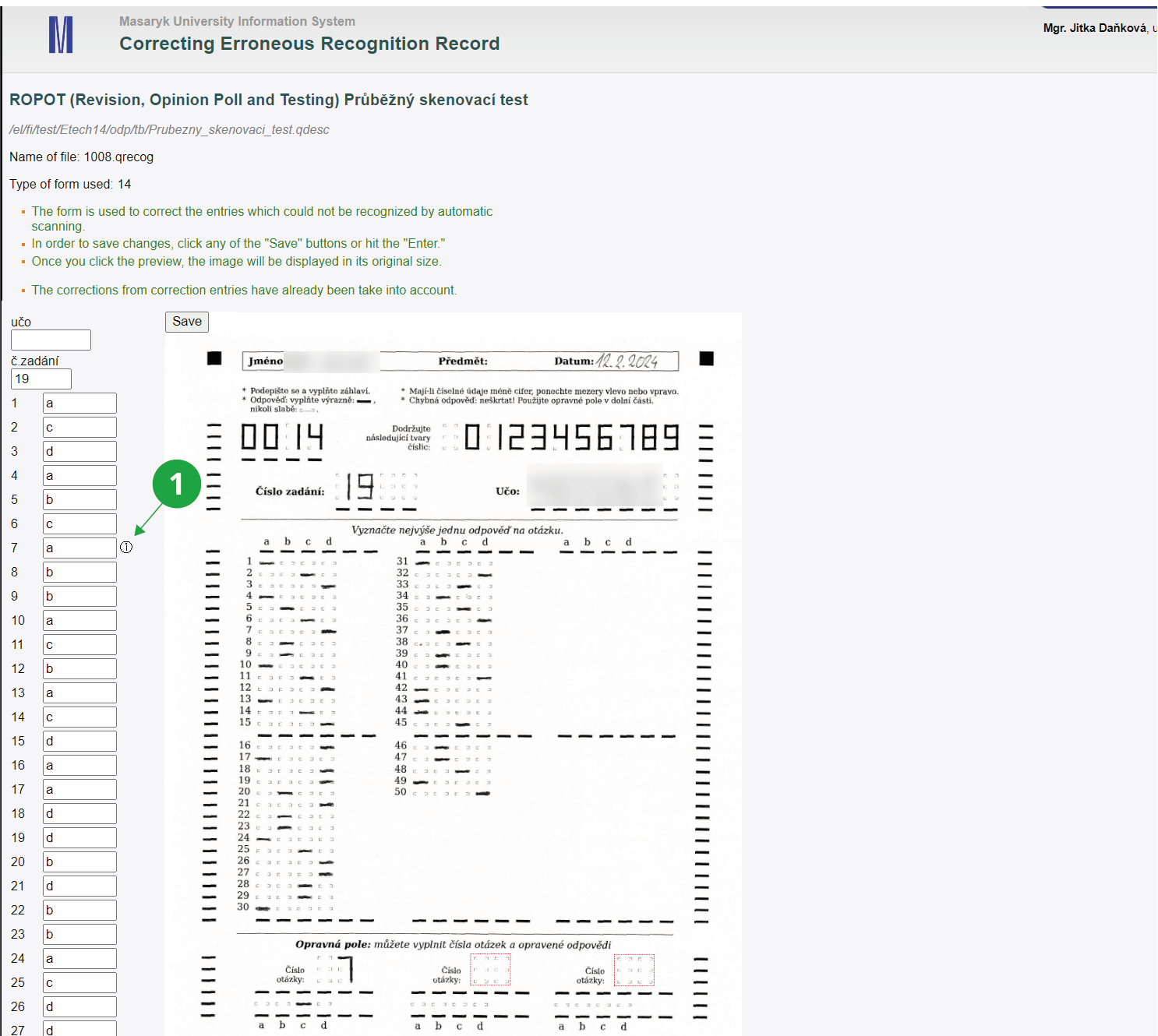
1Correction of scanned answer sheet recognition. The "i" icon indicates that this is a recognized correction.

When you have completed your corrections, you need to click on "Save" in the upper section and then close the window.
You can find the completely missing entry (test sheet number, učo) by the unused test sheet numbers,
which are listed below the list of erroneous scan results, or by test sheets where students write their name and učo. This can be tedious for large numbers of answer forms, so we recommend consistently requiring students to remember to write učo and test sheet number.
1Test sheets which have not been used.
You can fill in the misrecognized answer yourself according to the original.
If the scanned answer sheet is fine and legible, but the answers are still not recognized, it is possible that the answer sheet is scanned incorrectly. Then the answers need to be manually filled in.
It may happen that even after correcting the wrong answer sheets, there are still some unused assignments or that there are fewer answer sheets which has been scanned than the paper ones.
If all students came to the examination, then some students may have taken the test sheet as well as answer sheet home with them or the scanner feeder may have taken two sheets instead of one.
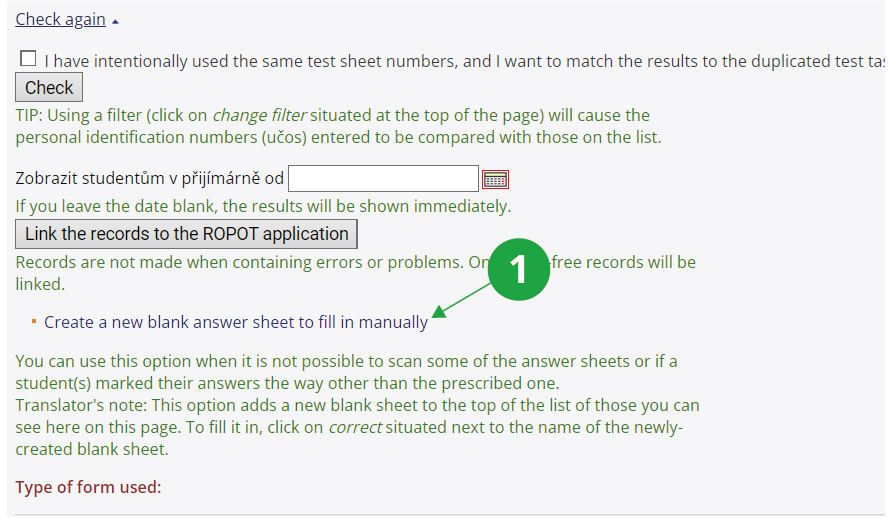
By assignment number, you can find the paper answer sheet and use the option "Create a new blank answer sheet to fill in manually" to create another form to fill in the answers, which, according to the paper form, you fill in. This option is also useful if the form is otherwise damaged and cannot be scanned.
1This option can be used to correct unrecognizable sheet by filling it in manually.
Once all the corrections are complete, click on "Check" again. If everything is now in order, click on "Link the records to the ROPOT application". Alternatively, you can enter the date from which the scanned answer sheets will be made available to students in their retrieval box.
Once the records have been linked to the ROPOT description, the scores for each test sheet (assignment) will be entered into a notebook, which will be the same name as the ROPOT title. These scores can then be used by the application
Information system Teacher [course selection] (Notebooks) Evaluate on the basis of scores
and converted to grades according to the specified scale. Using the application
Information system Teacher [course selection] (Notebooks) Evaluation transfer
you can assign students grades from the notebook as the final course grade. For more information, see the help:
Information system Help Teacher Notebooks
Scanned answer sheet previews and a records of recognition (question number, ticked answer and number of points awarded for the question) can be found in the students' retrieval box:
Information system Student Teaching Answer sheets
PozorScores from scanned tests of unauthenticated persons or persons identified by application number cannot be entered in the notebook. Those identified by application number can find answer sheet previews and recognition records in their application.