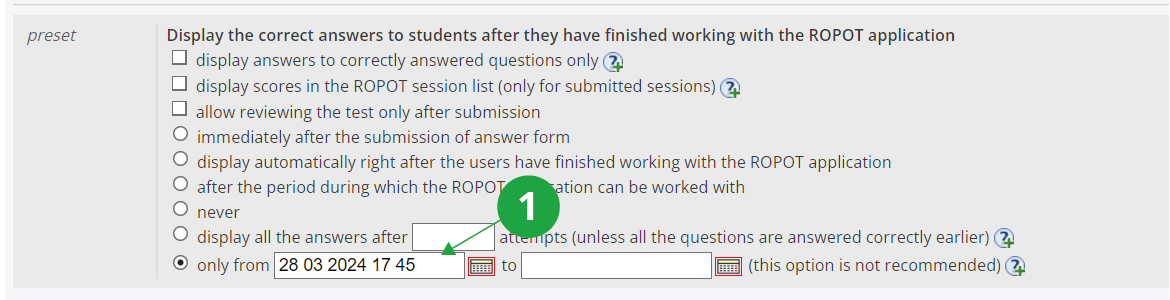
1Display setting options. In case of limiting the viewing "only to", it is necessary to take into account that students can print the displayed questions from the browser and have them available after this date.
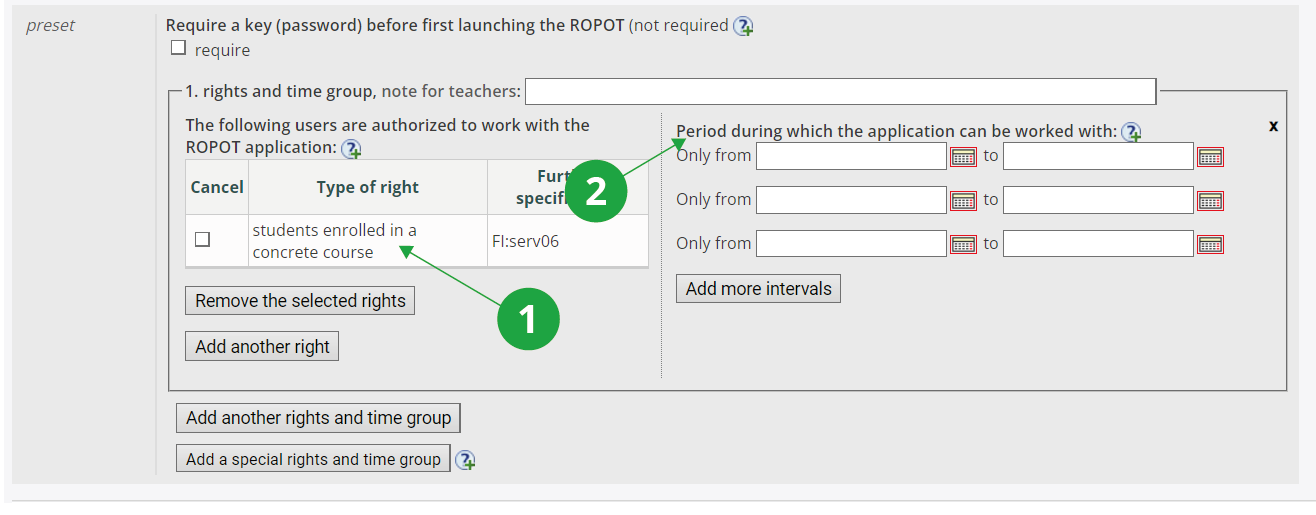
1 Who is allowed to work with the ROPOT: Typically, this will be students enrolled for a specific examination date or all students in a course; it will be those students who are allowed to view the responses they provided. You need to click on "Add another right", here you need to select the option "students with a reservation on an examination date" (or other suitable option), then select a specific examination date (or other refinement) from the menu and confirm by clicking on "Add the right".
2 When the ROPOT can be worked with: If the option "No, never (select this option provided the test is to be scanned and you only want to make it available for browsing)." is checked in the "Should students be allowed to access this ROPOT application repeatedly?" section, the content of the boxes can be left blank and students will only have access to the viewing their answers.
Finally, you need to specify the folder to which the link to the ROPOT should be placed. The course usually has a preset folder for ROPOT (Revision, Opinion Poll and Testing) in Study Materials and this setting does not need to be changed. The description of the ROPOT needs to be saved via the "Save and make accessible" button.
In the case of ROPOT in the "scannable handwritten text and scores" mode, students can see a scan of their answer sheet in their Retrieval Box according to the settings (the time and date from which students will be able to access the previews in the Retrieval Box can be set when checking results of recognition process). You can also make scans of answer sheets available to students in responses view by setting the ROPOT as accessible in the ROPOT description (the "Save and make accessible" button).