The Information system Teacher [course selection] (ROPOTs and Quizzes) Work with ROPOT [selected ROPOT]
again in the ROPOT description. First, set the access rights (see the question I want to set who is allowed to work with the ROPOT).
PozorYou have to assign rights in the ROPOT description, it is not enough to set them in the file manager (you don't have to set them there).
The next step is to create a link. The link is a new file with a special type .qref (questionnaire reference). You create it by saving the ROPOT description using the "Save and make accessible" button. The default location of the link is in the Study Materials / ROPOT (Revision, Opinion Poll and Testing) folder. You can change this location by using the "Change" button in the "Making the ROPOT application accessible to students" option by inserting a different address.
Students enrolled in the course also see a link to the ROPOT on their student page where all e-learning related links are collected:
The Information system Student Teaching ROPOT (Revision, Opinion Poll and Testing)
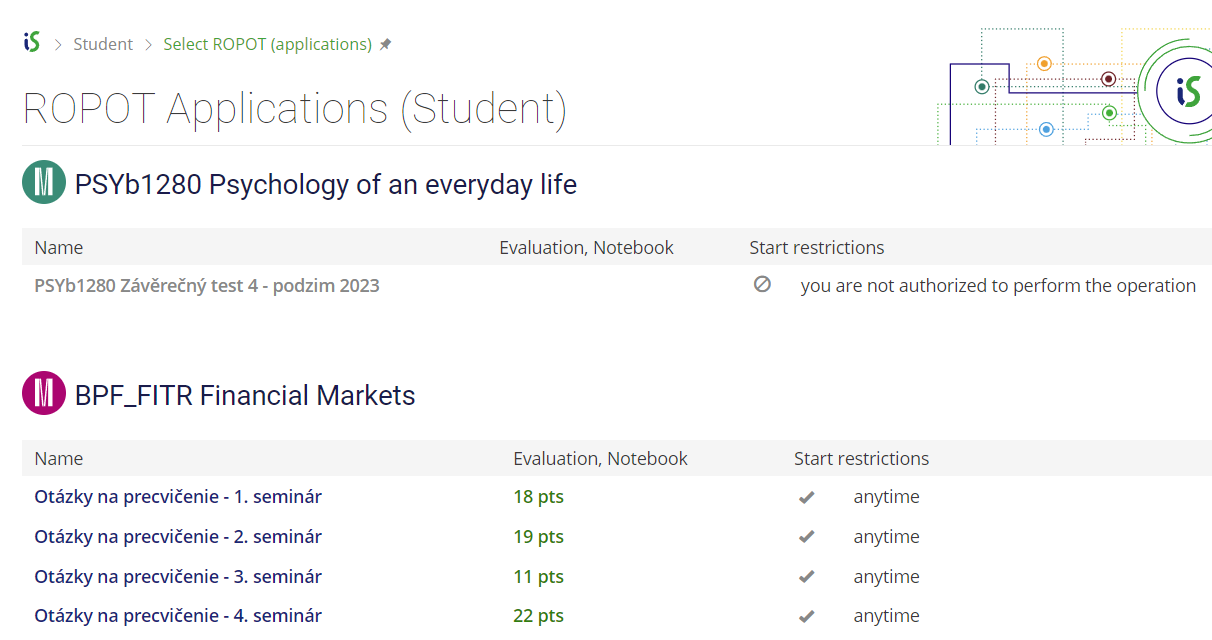
1 Overview of ROPOTs in the Student agenda.