The “Similar Documents” application now naturally includes a function for comparing two selected documents. In the list of similar documents, a selected document can be displayed together with the examined document by clicking the button with the magnifying glass icon. The correlation between similar texts in both documents is displayed visually at positions where similarities were found, including the degree of similarity of the identified passages.
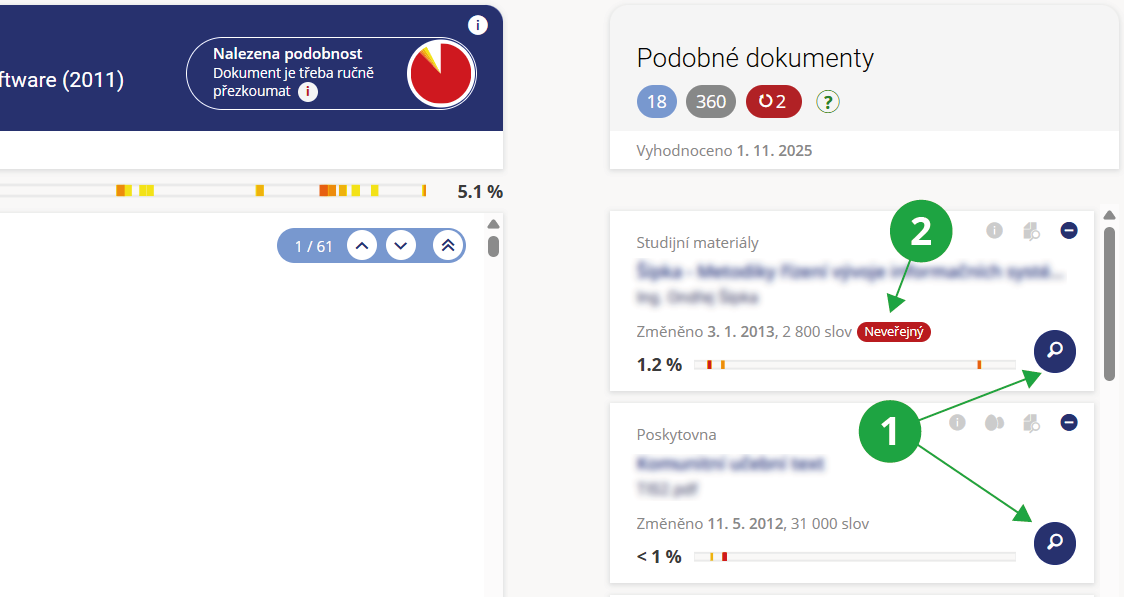
1 The magnifying glass button allows a detailed comparison of the selected document with the examined document.
2 Indication that the document is non-public; only overlapping sections will be displayed.
The application functions even if the user does not have access to the source document. In such cases, only the beginnings of similar words from the source document are shown, and the rest of the text is intentionally obscured. This serves as guidance for at least a rough assessment of the seriousness of the textual similarity.
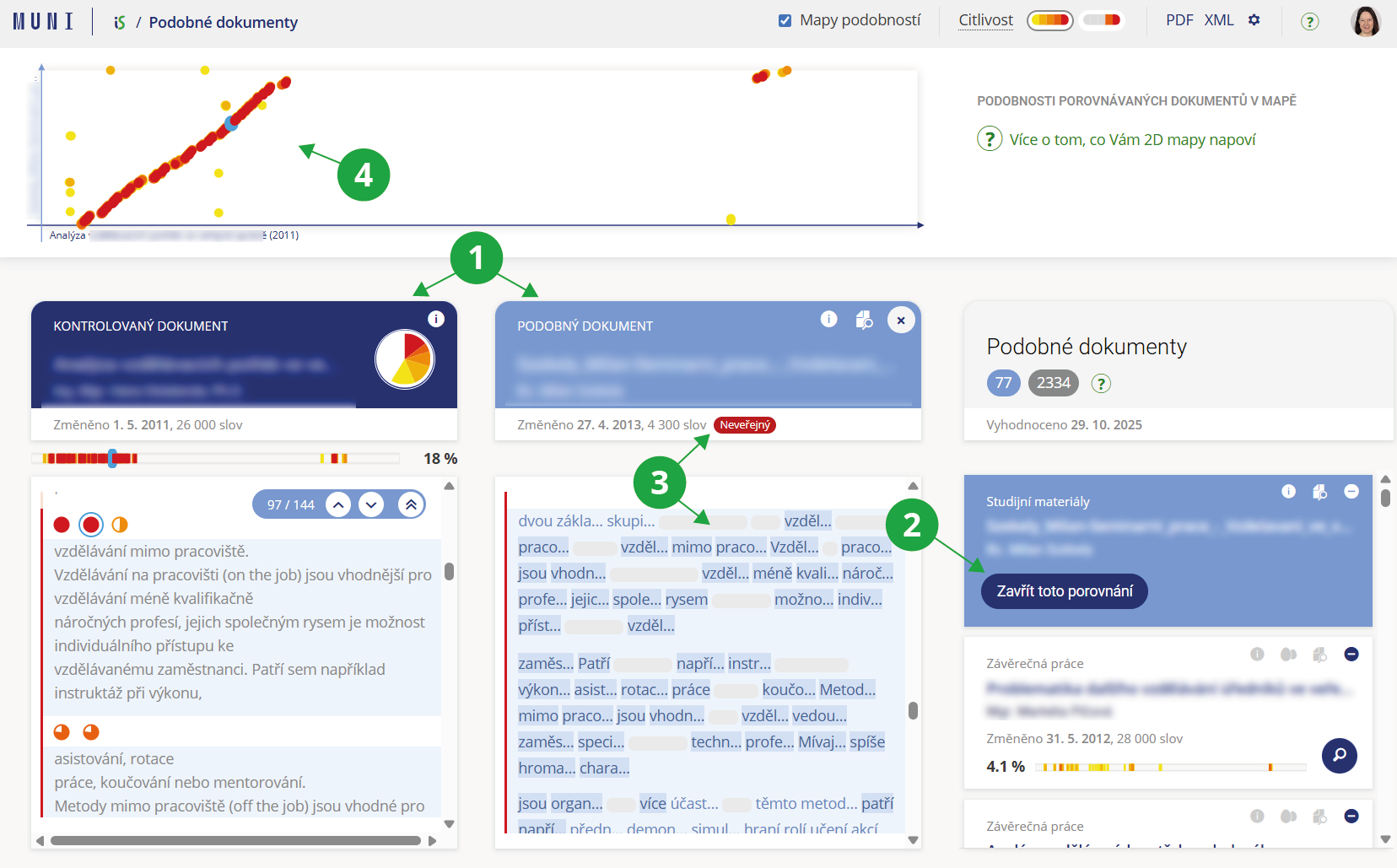
1 The examined document and the similar document are displayed side-by-side.
2 Return to the list of identified similarities.
3 For non-public documents, only the overlapping sections are shown.
4 The user may switch to a 2D similarity map (instead of a linear similarity map).
The application includes a number of graphical elements that make it easier to navigate the identified similarities. The degree of similarity of a passage is indicated by the color and fill level of a circle in various parts of the interface:
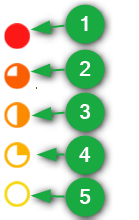
1 Almost verbatim match.
2 Only slight differences.
3 Partially similar passage.
4 Significantly rephrased passage.
5 Low degree of similarity; consider only in relation to surrounding passages.
Both the examined and source document are displayed in a similar way. The text is divided into shorter parts, approximately paragraph length, and two consecutive paragraphs from the examined document are compared with three paragraphs from the source document.
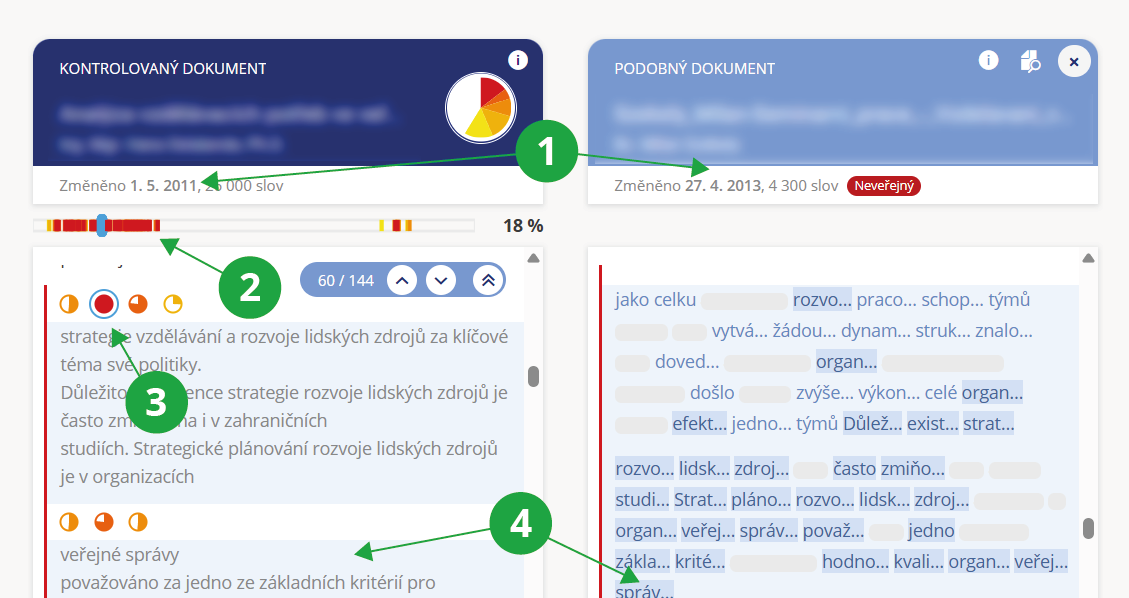
1 Document modification time helps determine which document is older.
2 The linear map of the document shows occurrences of similar passages. If one place in the document corresponds to multiple parts of the other document, the color reflecting the highest similarity is used.
3 Color indicators of similarity. Multiple circles may appear at one position if one place corresponds to multiple places in the opposite document.
4 The highlighted blue block marks selected paragraphs in both documents that are similar.
If the user wants to compare two particular documents directly and is concerned that one of them might otherwise be skipped due to low significance, they can use the application for direct comparison of two specifically selected documents. Both documents must be uploaded in the IS AMBIS.